


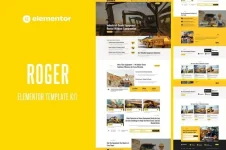
Roger – Elementor Template Kit for Machinery & Equipment Rental
Roger is a luxurious and modern Elementor Template Kit designed for machinery rental companies, construction equipment providers, industrial service businesses, and heavy equipment suppliers.Featuring a bold, structured layout with clearly defined service sections, Roger is built with a conversion‑focused approach—helping you showcase your rental inventory clearly and drive booking inquiries effortlessly. Best of all, everything can be customized visually in Elementor, with no coding required.
The kit is optimized for use with the free Hello Elementor theme, but it also works with most WordPress themes that support Elementor.
 Layout Features
- 100% responsive & mobile‑friendly design
- Modern, clean, and professional layout
- Easy to edit and customize
- 10+ pre‑built templates ready to use
- Built and optimized with Hello Elementor
 Templates Included
- Home
- About Us
- Service
- Why Choose Us
- Testimonials
- Pricing
- Blog
- Contact Us
- Single Post
- 404 Page
- Header
- Footer
 Addons & Plugins Included
- Elementor
- ElementsKit Lite
- Jeg Elementor Kit
- MetForm
 Important Notes
- This is NOT a WordPress theme.
- Template kits contain Elementor design data only.
- Installation requires the Envato Template Kit Import plugin or direct import through Elementor.
 How to Install Template Kits
Official Envato guide:How to Upload & Install Elementor Template Kits from Envato
To successfully integrate Elementor Template Kits obtained from Envato into your WordPress site, you need to follow specific steps that involve uploading and installing the templates.Before You Beg...
For additional assistance, go to Elementor → Get Help in your WordPress dashboard.
 Setting Up the Header (Jeg Elementor Kit)
For Jeg Elementor Kit users:Elementor Pro users: You can create headers and footers via Theme Builder instead.
- Go to Jeg Elementor Kit → Header Template
- Click Add New Header
- Add condition → All Site, then click Create
- Click the pencil icon to edit (Elementor will open)
- Click the gray folder icon to access My Templates
- Insert the header template
- Customize and Save
 Ensure pages built with Elementor use Page Layout: Elementor Full Width so the global header and footer appear correctly.
 How to Import MetForm Custom Forms
- Edit the page where the form should appear
- Open the Elementor Navigator and locate the MetForm widget
- Click Edit Form in the builder panel
- Select New, leave it blank, then click Edit Form
- Click Add Template (gray folder icon)
- Open the My Templates tab
- Select your imported MetForm template and click Insert
- Once loaded, click Update
View hidden content is available for registered users!
